

What is NotePADD?
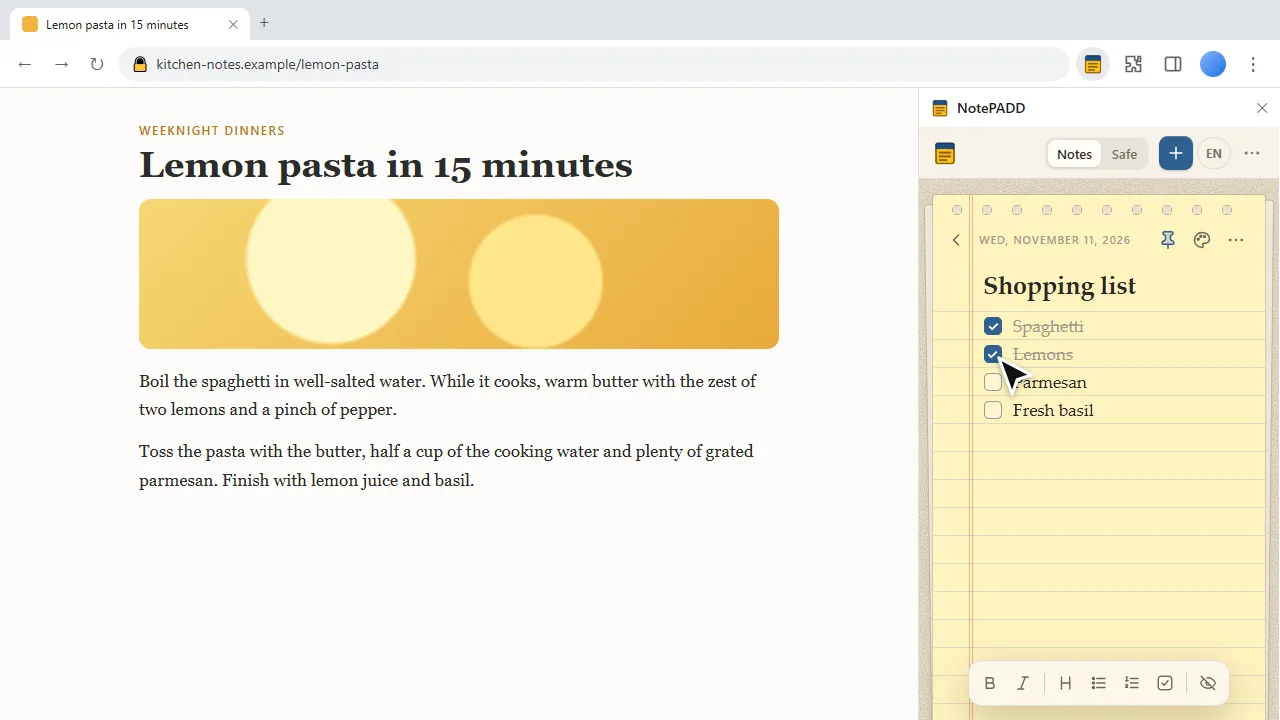
NotePADD is a notepad that lives next to the page you are reading. Click its toolbar icon and a calm, paper-like notepad opens in Chrome's side panel. It stays open while you switch tabs, so you can copy a phone number, collect links for a trip or keep a to-do list without leaving the page.
- Quick notes. Press + and type. There is no Save button: every word is saved as you type.
- Many notes. Each note is a page in the notepad; the list shows them all with a preview.
- Search finds a note by any word in its title or text.
- Open in a tab from the menu when a note needs more room.
Does it work offline?
Yes. NotePADD is a notepad offline by design: notes are stored in your browser on this computer, and the extension has no network access at all, not even to HotPanCake. It works the same on a plane, in a café without Wi-Fi, or at your desk.
Two things to know:
- Notes belong to this computer and this Chrome profile. There is no sync. To use them on another computer, back them up to a file and import it there.
- Removing the extension deletes the notes. Make a backup file first.
Checklists, headings and lists as you type
Type at the start of a line, followed by a space:
| Type | You get |
|---|---|
- | a bulleted list |
1. | a numbered list |
[] | a checklist you can tick off |
# | a heading |
The toolbar under the note has the same buttons, plus bold and italic.
Pin, color, search and Trash
- Pin important notes to keep them at the top of the list.
- Give a note a paper color: Paper, Butter, Rose, Mint, Sky or Lavender. Colors make notes easier to find at a glance.
- Search all notes from the box above the list.
- Deleted notes go to the Trash and are erased after 30 days. Changed your mind right away? Press Undo.
Save text from any web page
Select text on a page, right-click and choose Add to NotePADD. The text is saved as a note together with a link to the page it came from, so you can always find the source again. To keep just the address, right-click the page or a link and choose Save this page to NotePADD.
The Safe: private notes with a password
NotePADD has two tabs: Notes and Safe. Notes in the Safe are encrypted before they are written to disk:
- AES-256-GCM through the browser's built-in Web Crypto; the key comes from your password (PBKDF2-SHA-256, 600,000 rounds).
- A recovery key is shown once, when you create the Safe. Write it down: it is the only way back in if you forget the password.
- Auto-lock after 1, 5 or 15 minutes (the default) or 1 hour without activity, or only when the browser closes; and when your computer locks or sleeps.
- A password generator makes a strong password for a new account.
Step by step: how to password-protect notes in Chrome.
Hidden text for passwords and card numbers
Select a password, a PIN or a card number inside a note and press the eye button. The text is blurred, so people looking over your shoulder cannot read it. Click it to show it or copy it; after a copy, the clipboard is cleared in 30 seconds.
Hidden text is about what is visible on screen. It is not encryption: for that, keep the note in the Safe.
Backup, import and export
- Back up all notes to one file from the menu. Notes in the Safe stay encrypted in the file.
- Import a backup file to bring the notes back, on this or another computer; notes that are already there are kept. You can also import .txt and .md files as new notes.
- Download a single note as a .txt file, or print it.
Details: back up notes and move them to a new computer.
How does it compare?
| NotePADD | Google Keep | Online notepad websites | Sticky-note extensions | |
|---|---|---|---|---|
| Where | Chrome's side panel | Web, phone apps, Chrome | A browser tab | On web pages |
| Account needed | No | Google account | Usually no | Usually no |
| Works offline | Yes | In the apps | Rarely | Usually yes |
| Notes stored | This computer only | Google's servers | The site's server or the browser | Usually the browser |
| Password lock | Yes, the Safe | No | Rarely | Rarely |
| Sync between devices | No | Yes | Some sites | Varies |
| Phone apps | No | Yes | Mobile site | No |
More: NotePADD vs online notepad websites · NotePADD vs Google Keep · NotePADD vs sticky notes · notepad extensions for Chrome compared.
How do I start?
- Add NotePADD from the Chrome Web Store.
- Click the puzzle-piece icon and pin NotePADD.
- Click the NotePADD icon or press Alt+Shift+N. The notepad opens in the side panel.
- Press + and type. For private notes, open the Safe tab.
Missing something? Request a feature or tell us what went wrong.
Upgrading from version 3
Version 4 is a new notepad: the side panel, the Safe, pins and colors are new, and the Google Drive backup and CSV export of version 3 are gone. Your notes come along: plain notes move automatically, and encrypted notes from version 3 move into the Safe after you enter your old password. The old spreadsheet in your Google Drive is not deleted; NotePADD 4 simply no longer connects to Google.
Is it safe?
The extension has no network access, so notes cannot leave your computer through it. It asks only for local permissions: storage, the side panel, the right-click menu, and timers for auto-lock. Every permission is explained on the safety page; the details are in the privacy policy.
Product facts
| Developer | HotPanCake (PayForSay s. r. o., Slovakia) |
| Version | 4.0.0, updated 2026-11-11 |
| Languages | 52 |
| Works on | Chrome on Windows, macOS, ChromeOS and Linux |
| Storage | In this browser on this computer; no cloud |
| Network access | None |
| Price | Free |
Guides
- How to take notes in Chrome: built-in ways and extensions
- Turn your browser into a notepad
- How to password-protect notes in Chrome
- Back up notes and move them to a new computer
Compare
- NotePADD vs online notepad websites
- NotePADD vs Google Keep
- NotePADD vs sticky notes
- Notepad extensions for Chrome compared
More tools for writing in the browser: notes and text extensions · all HotPanCake extensions.